
Explore AI Video Trends
Explore AI video trends, choose a scene and make it your own with your photos.
Motion studio
Creations from this workspace appear here.
Find a scene for your next character video
Explore AI video trends by movement and subject, then choose the photos for the roles you want to personalize.
Pick a performance that fits your idea
Explore AI video trends spanning dance, pets, comedy and cinematic effects. Search by name or browse categories, then play the complete preview to see the action, framing and pace. A close-up gesture gives you a different starting point from a scene with several full-body performers. Look for moments when people overlap or turn away from the camera, and choose a performance that suits the images you have. The preview shows a reference for the scene; your generated result can look different.
Choose the people, pets or objects
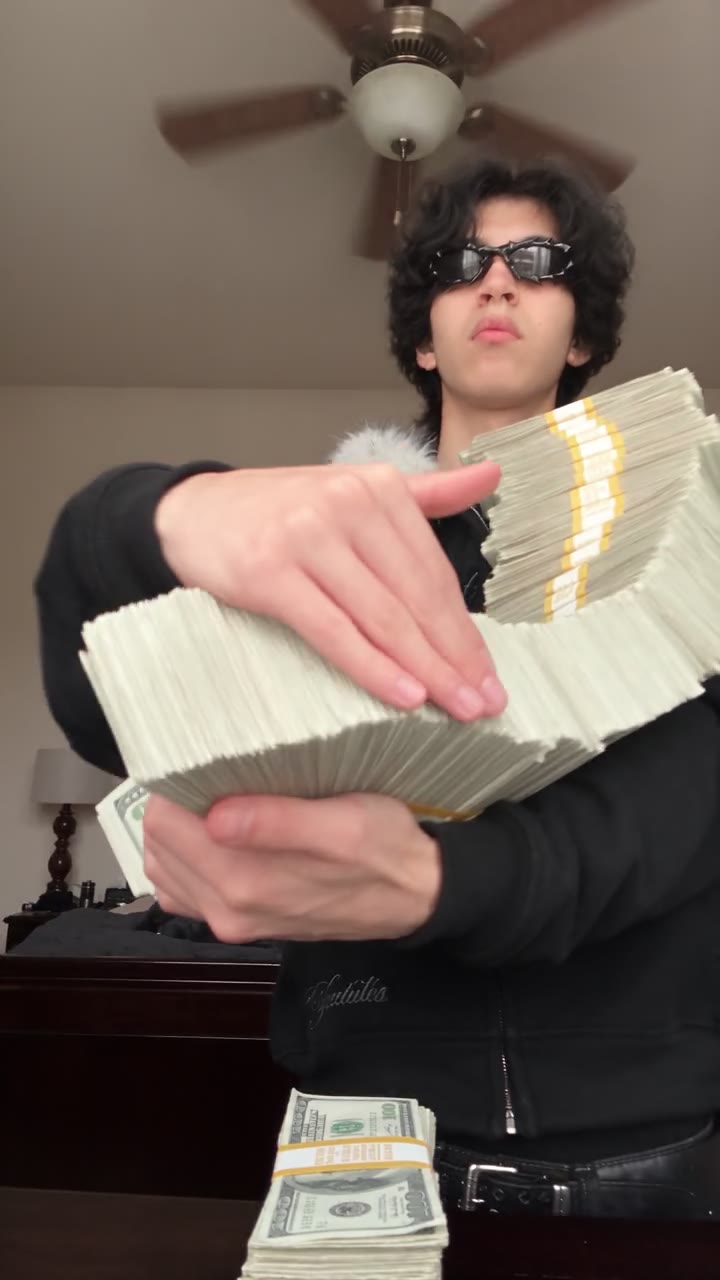
AI video trends can ask for different numbers of reference photos. After you select a scene, the workspace displays its required and optional roles. Add a clear image for each required slot and check the labels before submitting. For a full-body performance, a photo that includes the outfit, arms and legs gives the model more appearance details to work with. A generated AI influencer character can also be used as a reference in a compatible scene. Use photos you have permission to animate.
Review the result from beginning to end
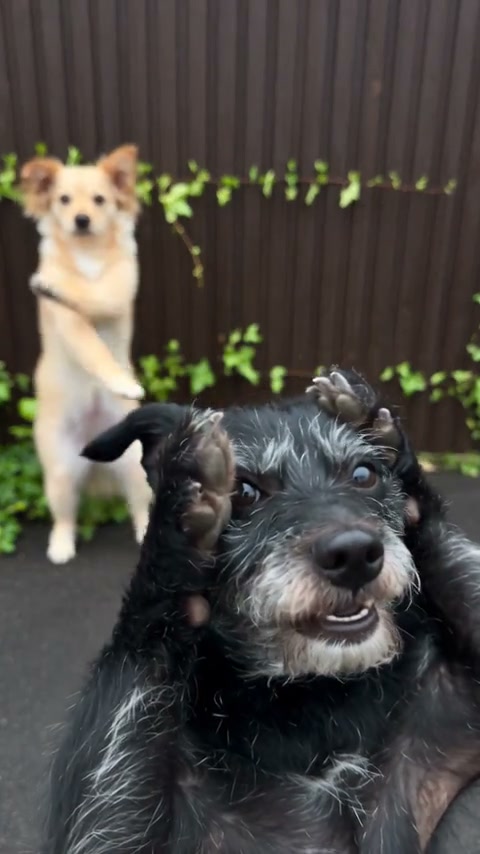
AI video trends use the selected scene as a guide, and results vary with the template, model, settings and reference photos. Watch the full clip for changes in faces, clothing and movement, especially during fast turns or contact between subjects. Listen when the selected trend includes audio. If a result needs work, try a clearer photo or a simpler scene and compare one change at a time. Another generation is a separate submission, so review its credit estimate first.
How to use AI video trends
Preview a scene, prepare its photos and review the result.
Step 1
Explore the collection
Search AI video trends by name or filter by category. Play a preview to understand the movement, cast and framing before choosing a scene.
Step 2
Load your chosen template
Select a trend to load its motion and settings. Add the required photos in their labeled roles and check the available mode and credit estimate.
Step 3
Create and review
Sign in to generate. Open My creations to watch a completed video, inspect the full performance and download the result you want to keep.
Questions about AI video trends
Details to check before you make a video.
What are AI video trends?
AI video trends are prepared video scenes that you can explore and personalize with photos. Each template supplies a motion reference and instructions for a particular performance. Select one in the collection to see its photo roles and available settings. The preview helps you understand the action, while the finished result depends on your own inputs.
How many photos should I add?
Each template shows its required and optional roles. Some AI video trends need one image; others use multiple photos for separate subjects. Prepare a clear photo for every required slot and check which person, animal or object the label refers to. Optional slots may be left unfilled when the workspace allows it.
What makes a good reference photo?
Choose a well-lit photo with the intended subject easy to distinguish. Match the crop to the performance: a face and shoulders can suit a close-up, while a full-body scene benefits from visible limbs and clothing. Avoid heavy blur or another subject covering important features. For AI video trends with several roles, check whether each role needs a separate image.
Can I use a pet photo?
Yes. Browse the Pets category in AI video trends and choose a scene designed for an animal. Check the photo slots after loading it and select a clear image that shows the pet and the body parts involved in the action. Review the resulting movement and details before sharing.
Will the video include sound?
Audio depends on the selected template or model and the settings it offers. Listen to the preview where available, then check the workspace before generating. AI video trends do not all offer the same audio options, and the reference does not guarantee an identical soundtrack or exact timing in your result. Check your rights before publishing media elsewhere.
Do AI video trends require a motion upload?
A fixed trend supplies its reference and instructions, so you do not need to upload a motion clip for that template. If you have a different performance in mind, the general motion workspace can accept your own compatible reference video. The selected model determines available inputs, length and other settings.
Does previewing AI video trends use credits?
Browsing and previewing do not submit a generation. After you load a trend and add the requested photos, check the credit estimate shown for the selected mode before creating a video. Repeating a generation or choosing different settings can produce a different estimate, so review it each time.
Why do some AI video trends have several names?
A scene may be known by an effect, a song phrase or a community name. Search can match the aliases associated with its card. If you do not find the wording you expected, try a shorter phrase or browse by category and compare the preview with the performance you have in mind.
How can I browse recent additions?
Choose Newest first above the collection to see recently added AI video trends. The added date describes when an item entered this directory; it does not promise that a scene is new to every social platform. You can also use categories and search to find a particular subject or style of movement.
Can I replace backgrounds in AI video trends?
Available changes depend on the selected scene. The reference may include a setting that is part of the performance, while the template exposes photo slots for particular subjects. Check the labeled roles and settings before you generate. A background visible in a preview is not automatically an editable role in every template.
Do I need an account for AI video trends?
You can browse the collection and preview a scene before signing in. A generation requires an account and the credits shown in its estimate. Once a video is complete, open My creations to review the result and download the available file. Check the input roles and settings before submitting.
Will my result match the preview exactly?
The preview guides the action; generated faces, clothing, framing and movement can vary with your photos and selected settings. Watch the whole clip before sharing it. If a particular movement is hard to reproduce, try a clearer photo or a less crowded scene and compare the next result. Each new submission can use additional credits.
Can I use an AI influencer in a trend?
Yes. Create a character sheet on the homepage, then select a compatible character image for a role in the chosen scene. Check the framing against the performance and add any other required photos. An AI influencer may look different across AI video trends, so inspect the face, outfit and motion in the completed clip.
How do I choose among AI video trends?
Start with the subject and mood you want: a solo dance, a pet scene or a comic performance. Filter the AI video trends collection and watch the entire preview. Compare the framing with your available photos, then select a scene and inspect its required roles. You can browse several options before submitting anything.
Can I change the instructions in a trend?
A prepared trend loads its own motion reference and instructions. The available controls depend on the template and selected mode; inspect the form after loading it to see what can be changed. If you want a different performance altogether, browse other AI video trends or use a compatible model with your own motion reference.
Can I share videos from AI video trends?
You can download a completed video from your results and decide where to share it. Before publishing, watch the full clip, check any soundtrack and make sure you have permission to use the images and other media involved. Social platforms may crop or compress a video differently, so review how it appears there too.
Can I try different AI video trends?
Yes. Return to the collection and choose another scene. Different AI video trends may have different roles, available modes and reference lengths. Review the new workspace before submitting, particularly if switching templates replaces inputs you already selected. Previewing a new option does not itself generate a video.
Find the moment your character belongs in
Choose an AI video trend above and load it into the workspace.